Installation and updates
The latest version is on the download page.
Install SweepLead (5 minutes)
SweepLead for Google Maps is installed by hand in Google Chrome, in developer mode. This is the method Chrome provides for extensions distributed outside its store.
- Download the
sweeplead-<version>.zipfile from sweeplead.com/download. - Unzip it into a folder you will keep, for example
Documents\SweepLead. On Windows: right-click the file, then "Extract All". On a Mac: double-click it. Do not delete this folder: Chrome runs the extension from it.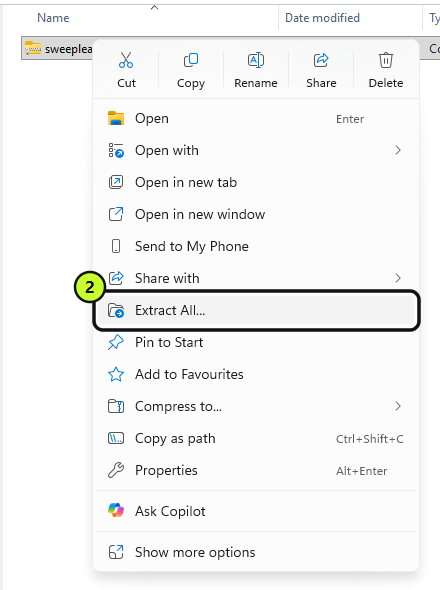
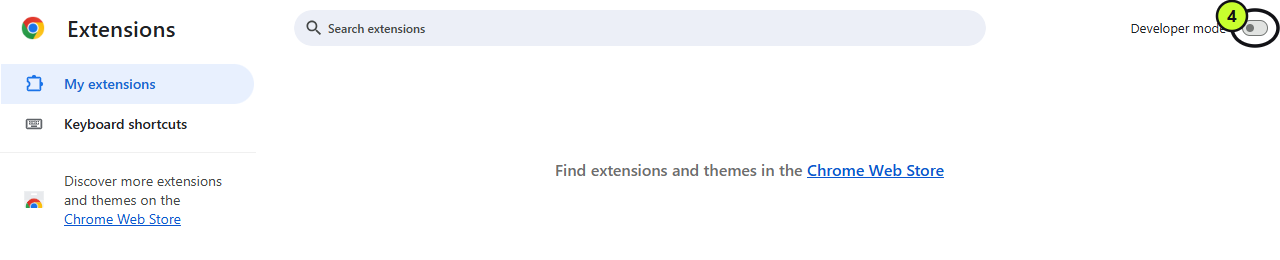
- In Chrome, type
chrome://extensionsin the address bar and press Enter. - Turn on Developer mode (switch at the top right).
- Click Load unpacked, then choose the unzipped folder (the one that contains
manifest.json).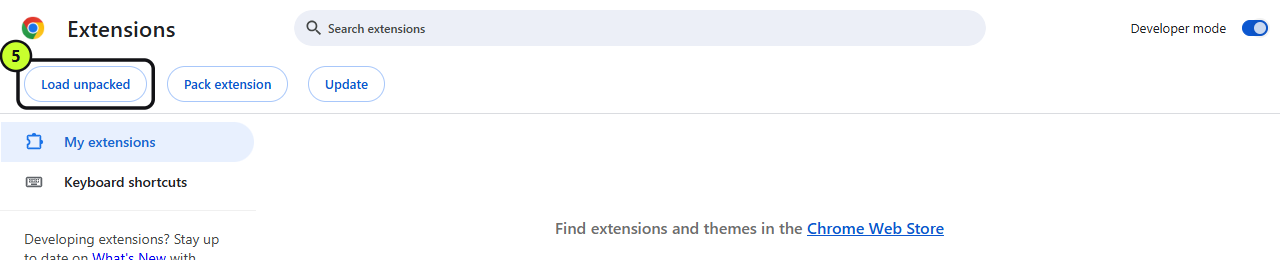
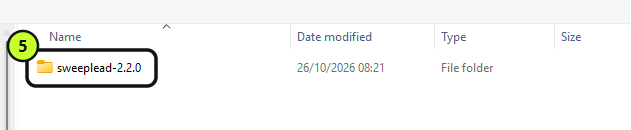 SweepLead appears in the list: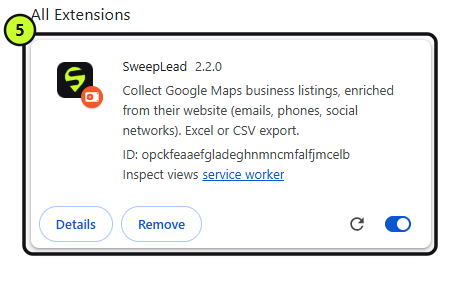
- Pin SweepLead: click the puzzle-piece icon at the top right of Chrome, then the pin next to SweepLead.
- Open Google Maps (google.com/maps) and click the SweepLead icon, or the SweepLead button at the bottom left of the map. The panel opens on the right.
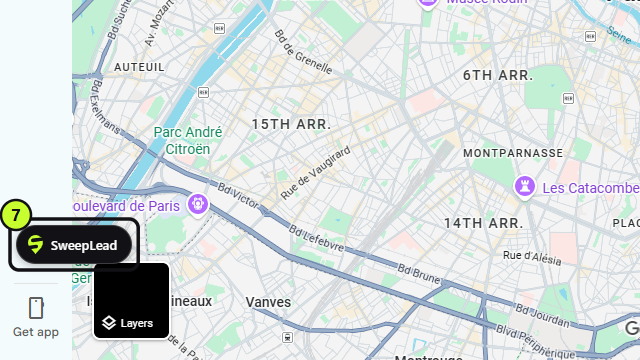
First steps:
- In the Collect tab, choose the folder where your files will be saved.
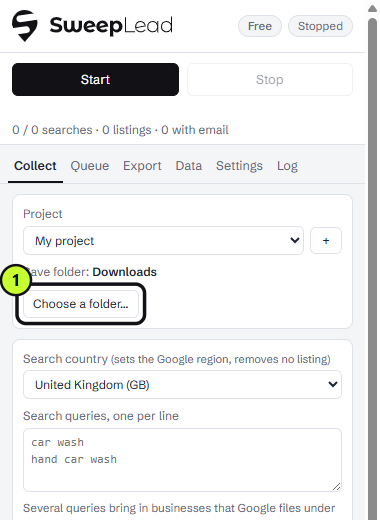
- The first time you start a collection with website analysis, Chrome asks for access to business websites: accept, otherwise emails cannot be found.
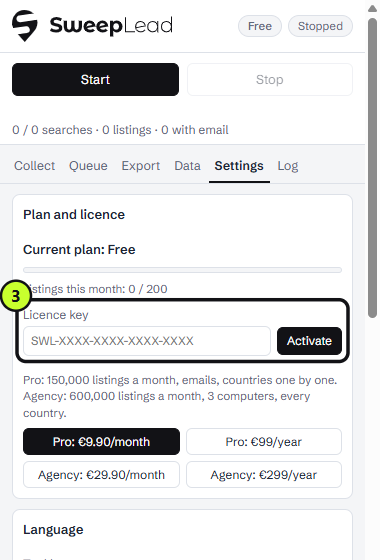
- Bought a plan? Paste your licence key in Settings, then Plan and licence.
Update
When a new version is released, the panel shows a banner at the top.
- As a precaution, back up your database: Data tab, then "Back up the database".
- Download the new ZIP ("Download" button in the banner).
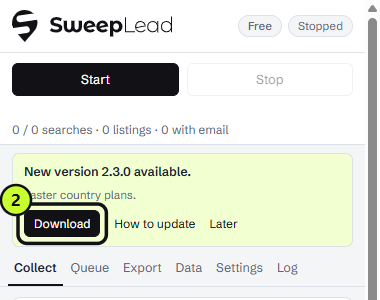
- Unzip it into the same folder as the first time, replacing the files. Do not remove the extension from Chrome: your listings, settings and key are kept there.
- In
chrome://extensions, click SweepLead's circular arrow.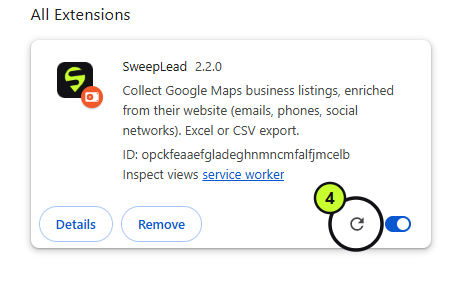
- Reload any Google Maps tabs already open.
A red banner means your version no longer works with Google Maps (Google changed its format): update before starting another collection.
Troubleshooting
- The SweepLead button does not appear on the map: reload the Google Maps page. SweepLead works on
google.com/maps. - Chrome offers to disable developer mode extensions: decline, otherwise SweepLead stops.
- Do not uninstall SweepLead to reinstall it: its database of listings is erased with it. Back it up first (Data tab).
- Questions: contact@sweeplead.com (reply within 2 business days).